


How to Install QuickBooks Desktop on Windows 11: Complete 2026 Guide

Installing QuickBooks Desktop on Windows 11 can be straightforward when you follow the correct installation process. Whether you are installing QuickBooks Desktop for the first time or reinstalling it on a new Windows computer, preparing your system correctly can help prevent common installation problems.
In this guide, you’ll learn how to install QuickBooks Desktop on Windows 11, what to check before installation, how to activate your software, and what to do if you encounter common installation errors.
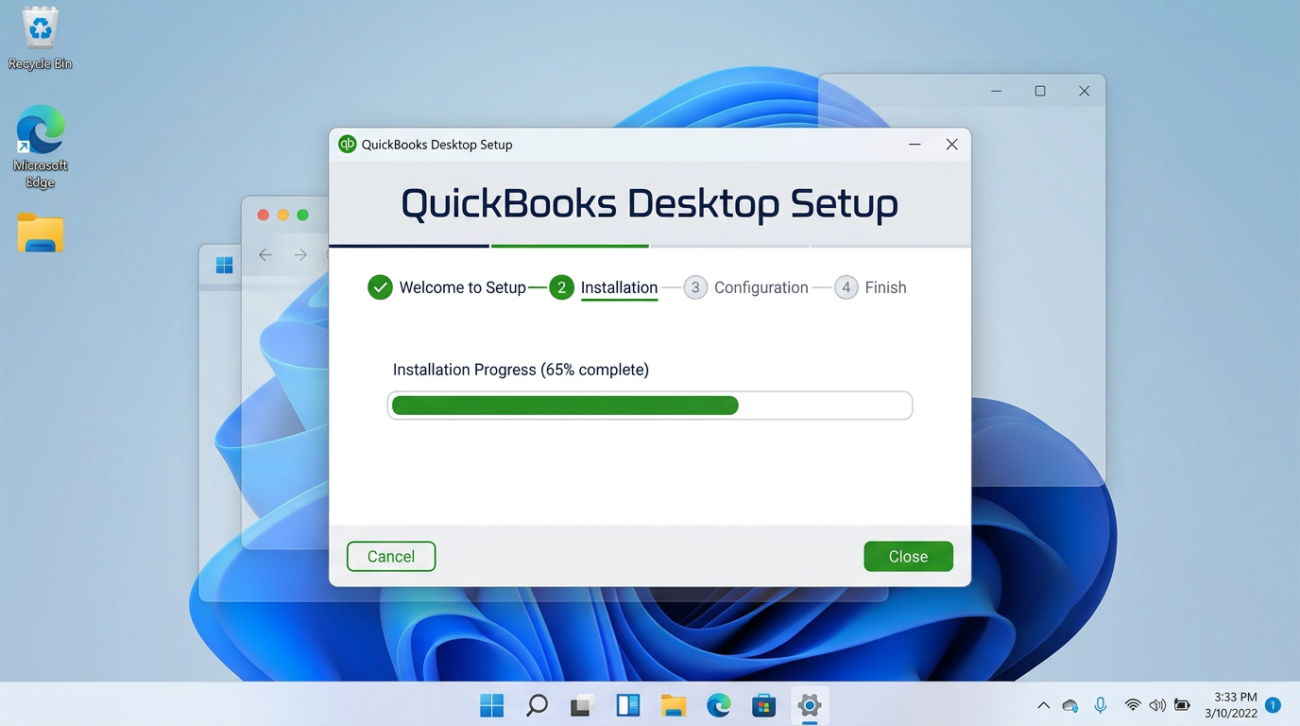
Before You Install QuickBooks Desktop
Before starting the installation, make sure your Windows computer is ready.
1. Check Your Windows Version
Make sure your computer is running a supported version of Windows for the specific QuickBooks Desktop edition you are installing.
QuickBooks Desktop requirements can vary depending on the year and edition, so always check the requirements for your specific version before beginning the installation.
2. Have Your QuickBooks License Information Ready
Depending on your QuickBooks Desktop product and purchase method, you may need your license number, product number, or account information during setup or activation.
Keep this information available before starting the installation.
3. Close Other Programs
Close unnecessary applications before installing QuickBooks Desktop.
This can help avoid conflicts during the installation process and allows Windows to complete the setup more efficiently.
4. Make Sure You Have Administrator Access
QuickBooks Desktop installation may require Windows administrator permissions.
If you are using a work computer, you may need to contact the system administrator before installing the software.
How to Install QuickBooks Desktop on Windows 11
Once your computer is ready, follow these steps.
Step 1: Prepare the QuickBooks Installation File

Locate the QuickBooks Desktop installation file you obtained from your legitimate purchase or authorized source.
The installation file may be provided as a downloaded installer or another supported installation format.
Before running the installer, make sure you are installing the correct QuickBooks Desktop edition and year.
Step 2: Start the Installation

Locate the QuickBooks installation file and open it.
If Windows displays a security or permission prompt, review the information and allow the installer to continue if you trust the installation source.
The QuickBooks Desktop installation window should then appear.
Step 3: Accept the License Agreement

Read the QuickBooks license agreement and accept the terms if you agree with them.
Continue to the next step of the installation.
Step 4: Choose the Installation Type
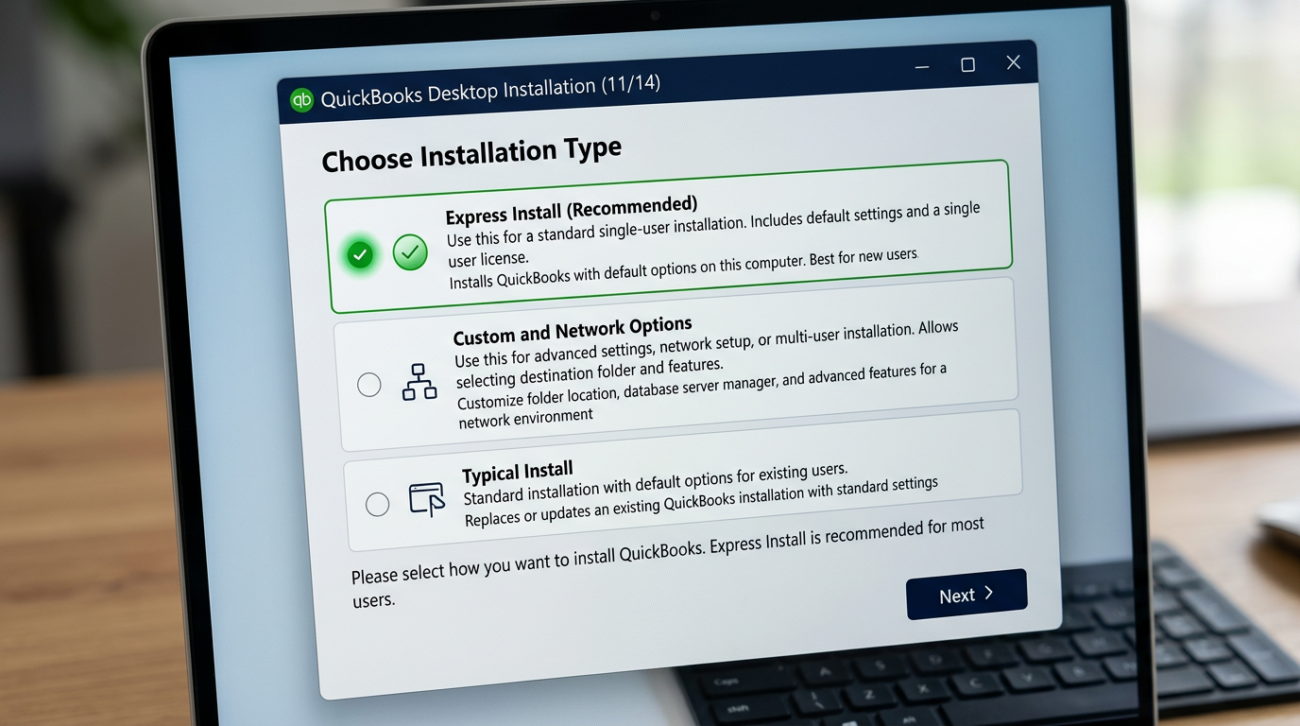
QuickBooks Desktop may provide different installation options depending on the edition and setup environment.
For a normal installation on a single computer, choose the standard installation option recommended by the installer.
If you are setting up QuickBooks for multiple users or installing it in a network environment, select the appropriate network or custom installation option instead.
Step 5: Select the Installation Location
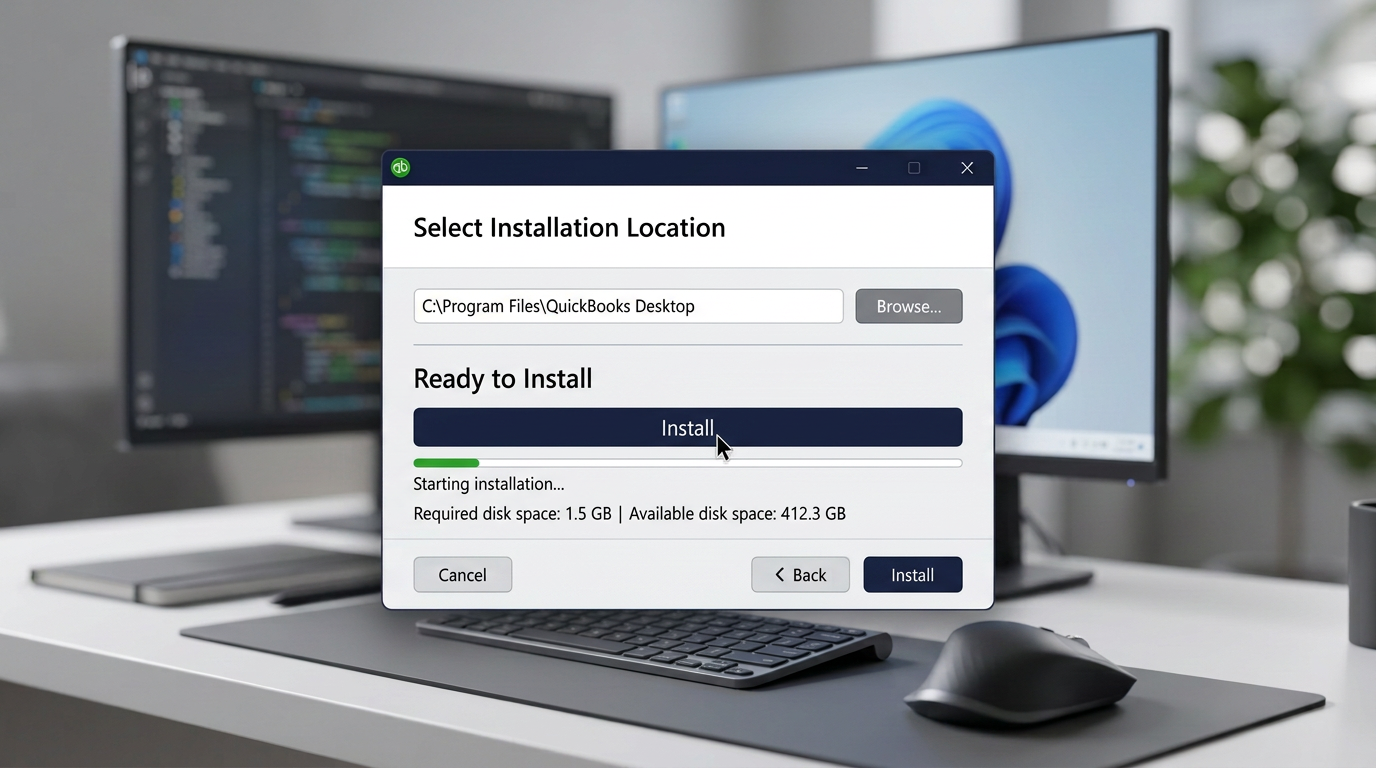
The installer may allow you to choose where QuickBooks Desktop will be installed.
For most users, the default installation location is appropriate.
If you have a specific reason to change the installation directory, choose a location with sufficient available storage and avoid moving program files manually after installation.
Step 6: Start the Installation
Review your selected installation options and start the installation.
Windows may take several minutes to copy and configure the required QuickBooks files.
Do not shut down the computer while the installation is running.
Step 7: Finish the Installation

When the installation is complete, select the option to finish the setup.
You can then launch QuickBooks Desktop from the Windows Start menu or from a desktop shortcut if one was created.
How to Activate QuickBooks Desktop
After installation, QuickBooks may require product activation or registration.
Open QuickBooks Desktop and follow the activation instructions displayed on the screen.
Depending on your product and licensing arrangement, you may be asked to sign in to your Intuit account or provide the required product information.
If activation fails, verify that:
- Your internet connection is working.
- You are using the correct account.
- Your QuickBooks version matches your license.
- Your license or subscription is still valid.
- Your Windows date and time are correct.
Never use unofficial activation tools, cracks, or modified installers. They can compromise your computer and may result in software or licensing problems.
QuickBooks Desktop Installation Problems on Windows 11
Sometimes QuickBooks Desktop may not install correctly. Here are several common problems and possible solutions.
QuickBooks Installation Gets Stuck
If the installation appears to stop responding, wait several minutes first.
If there is no progress, restart Windows and try the installation again.
Also make sure other programs are closed before restarting the installation.
QuickBooks Installation Error
Installation errors can have different causes, including corrupted installation files, Windows permissions, conflicting software, or an incomplete previous installation.
Try the following:
- Restart Windows.
- Close unnecessary applications.
- Make sure you have administrator access.
- Verify that the installer is complete and not corrupted.
- Run the installation again.
- Check the requirements for your specific QuickBooks Desktop version.
QuickBooks Will Not Open After Installation
If QuickBooks installs successfully but does not open, restart the computer first.
If the problem continues, check whether your Windows environment and QuickBooks version are compatible.
You can also use Intuit’s official troubleshooting resources for the specific QuickBooks Desktop version you have installed.
Previous QuickBooks Installation Is Causing Problems
If an older QuickBooks installation is interfering with the new installation, you may need to repair or remove the previous installation before trying again.
Be careful when removing QuickBooks from a computer that already contains company files.
Important: Uninstalling QuickBooks Desktop does not mean you should delete your QuickBooks company files or backups.
Always keep a secure backup of important accounting data.
How to Update QuickBooks Desktop After Installation
After successfully installing QuickBooks Desktop, check whether updates are available for your version.
Software updates can include bug fixes, security improvements, and compatibility improvements.
Open QuickBooks Desktop and use the available update options for your version.
It is a good practice to keep your software updated while ensuring that the update is compatible with your specific QuickBooks Desktop edition.
How to Reinstall QuickBooks Desktop on Windows 11
If you need to reinstall QuickBooks Desktop, the general process is:
- Back up your QuickBooks company files.
- Record your product and licensing information.
- Uninstall the existing QuickBooks installation if necessary.
- Restart Windows.
- Use the correct QuickBooks Desktop installer.
- Install the software again.
- Activate or sign in when requested.
- Open your company file and verify that everything works correctly.
Always make sure you have a backup before making major changes to an existing accounting installation.
QuickBooks Desktop Installation Checklist
Before finishing your installation, use this checklist:
- Windows 11 is updated.
- Your QuickBooks Desktop version is supported.
- You have the required license information.
- You have administrator access.
- Important company files are backed up.
- The QuickBooks installer comes from a legitimate source.
- QuickBooks opens successfully.
- Activation is completed.
- Your company file opens correctly.
- Your QuickBooks installation is updated when appropriate.
Frequently Asked Questions
Can I install QuickBooks Desktop on Windows 11?
Yes, supported QuickBooks Desktop versions can be installed on Windows 11. However, compatibility depends on the specific QuickBooks Desktop edition and year.
Always verify the system requirements for your exact version before installation.
How long does QuickBooks Desktop take to install?
The installation time depends on your computer, Windows configuration, installation method, and QuickBooks version. In many cases, the basic installation only takes several minutes.
Do I need administrator access to install QuickBooks Desktop?
You may need Windows administrator permissions to install QuickBooks Desktop and make changes to system files.
Can I reinstall QuickBooks Desktop without losing my company files?
Generally, reinstalling the application does not require deleting your company files. However, you should always create a backup before uninstalling or reinstalling accounting software.
Why won’t QuickBooks Desktop install on Windows 11?
Possible causes include incompatible software versions, corrupted installation files, Windows permissions, insufficient system resources, or problems from an earlier QuickBooks installation.
Do I need an internet connection to install QuickBooks Desktop?
Some QuickBooks Desktop installation and activation processes may require an internet connection. Requirements can vary depending on the specific product and licensing method.
How do I fix a QuickBooks Desktop installation error?
Start by restarting Windows and checking the system requirements for your specific QuickBooks version. Then verify the installation file, administrator permissions, and any previous QuickBooks installation that may be interfering.
For persistent errors, use the official troubleshooting resources for your QuickBooks Desktop version.
Final Thoughts
Installing QuickBooks Desktop on Windows 11 doesn’t have to be complicated. The most important steps are choosing the correct QuickBooks version, preparing Windows before installation, using a legitimate installer, completing activation, and keeping your accounting data backed up.
If you experience an installation problem, avoid using unofficial activation tools or modified software. Instead, identify the specific error and use the appropriate troubleshooting method for your QuickBooks Desktop version.
For users who need QuickBooks Desktop for accounting, invoicing, bookkeeping, or business management, taking a few minutes to prepare the computer before installation can prevent many common problems.
Tip: Before installing or reinstalling QuickBooks Desktop, always verify that the version you are using is compatible with your Windows environment and that you have a secure backup of your important company files.
If you’re ready to get started with QuickBooks Desktop Pro Plus 2024 for up to 3 users, learn more about the product here.